What happened to saved places on Instagram?
Instagram removed the dedicated Places search tab and left Saved unsearchable. Here is what happened to your saved places and how to map them.
By The Reel to Trip team
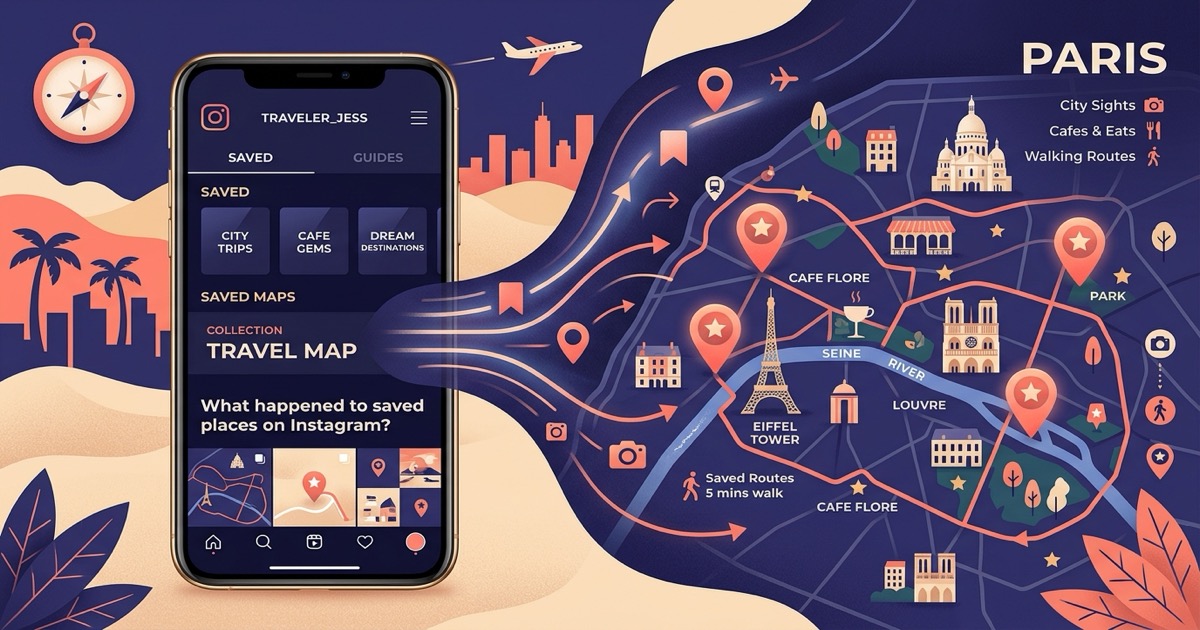
You saved dozens of travel reels, cafes, and scenic spots over months of scrolling, anticipating the day you would finally book your flights. But when you opened Instagram to plan the trip, the dedicated Places tab was gone from search, and your saved posts were jumbled into an unsearchable chronological grid. If you are wondering where your saved places went, you are not alone.
Did Instagram delete your saved places?
No, Instagram did not delete your saved places or location-tagged posts. All of your bookmarked photos, videos, and reels are still safely stored in your account under Profile → Menu (☰) → Saved, but Instagram removed the dedicated discovery filters and map views that previously organized them by location.
The issue is not missing data, but missing structure. When you open your Saved folder, every post you have ever bookmarked sits in a single chronological stream called All Posts. If you saved a boutique hotel in Florence eight months ago, it is buried beneath hundreds of unrelated reels, recipes, memes, and style inspiration, with no visual map to distinguish your vacation spots.
Why did the Places tab disappear from Instagram search?
Instagram removed the dedicated Places search tab to simplify its Explore interface and push users toward unified keyword search and algorithmic recommendations. Rather than maintaining a separate directory of location feeds, the platform phased out the Places filter in favor of general search results and its full-screen interactive Map.
In earlier versions of the app, tapping the search bar let you toggle directly to Places to explore nearby hotspots, view chronological stories, and inspect top-rated venues. Meta streamlined the interface to prioritize video discovery, replacing specialized location feeds with broad keyword matches. While this change keeps users watching content in Explore, it stripped away the primary tool travelers used to browse destinations.
Can you search inside Instagram saved posts?
No, Instagram does not have a search bar or keyword filter inside your Saved folder or Collections. You cannot type a city name, cafe name, or country into your saves to pull up matching posts; you must scroll through your feed manually to find what you need.
This lack of search is the primary reason saved travel reels turn into a digital graveyard. Even if you group your bookmarks into folders using Instagram Collections, the folders remain static video feeds. As we explain in our guide on how to organize saved Instagram reels for travel, Collections organize the media files, but they cannot extract the venues or map the geographic distances between them.
How do you find the location of an individual saved reel?
To find the location of an individual saved reel, open the video from your Saved folder and look for the location tag directly beneath the creator's username or above the caption. Tapping the blue location link opens Instagram's map view showing the venue's address and other public posts shared at that spot.
If the creator skipped adding a geotag, you will need to inspect secondary clues: the text overlay inside the video, the caption copy, or the first comment where creators frequently list addresses. For tricky clips that do not label the spot, follow our five-signal method to find a place from an Instagram reel.
How do you turn saved reels into a map without the Places tab?
To turn your saved reels into a functional map, you can paste the reel links into a free web tool like Reel to Trip or manually transcribe each address into Google My Maps. Automated tools parse the audio, captions, and visual landmarks from your saved links to pin each location automatically, allowing you to export the entire list to Google Maps in one tap.
Instead of manually squinting at video thumbnails and typing addresses into a separate navigation app, an automated workflow extracts every venue in seconds:
- Gather your destination reels. Open your Instagram Saved folder and copy the links of the reels you want to visit (tap Share → Copy link).
- Submit the links to Reel to Trip. Paste the links into the web planner or forward them directly via DM to @reeltripper on Instagram.
- Inspect the automated map. The tool identifies every cafe, viewpoint, and museum across your reels and pins them to a unified destination map.
- Export to Google Maps. Review your clustered neighborhood itinerary and send the pins directly to Google Maps for turn-by-turn navigation on your phone.
For a deeper dive into moving your pins across platforms, check our complete walkthrough on how to export Instagram saved places to Google Maps or learn how to turn an Instagram saved folder into a trip itinerary.
Best habits for saving travel spots on Instagram
- Create destination-specific collections immediately. Never save travel reels into the generic 'All Posts' bucket. Long-press the bookmark icon and file the reel into a specific city folder (e.g., 'Rome 2027') the moment you see it.
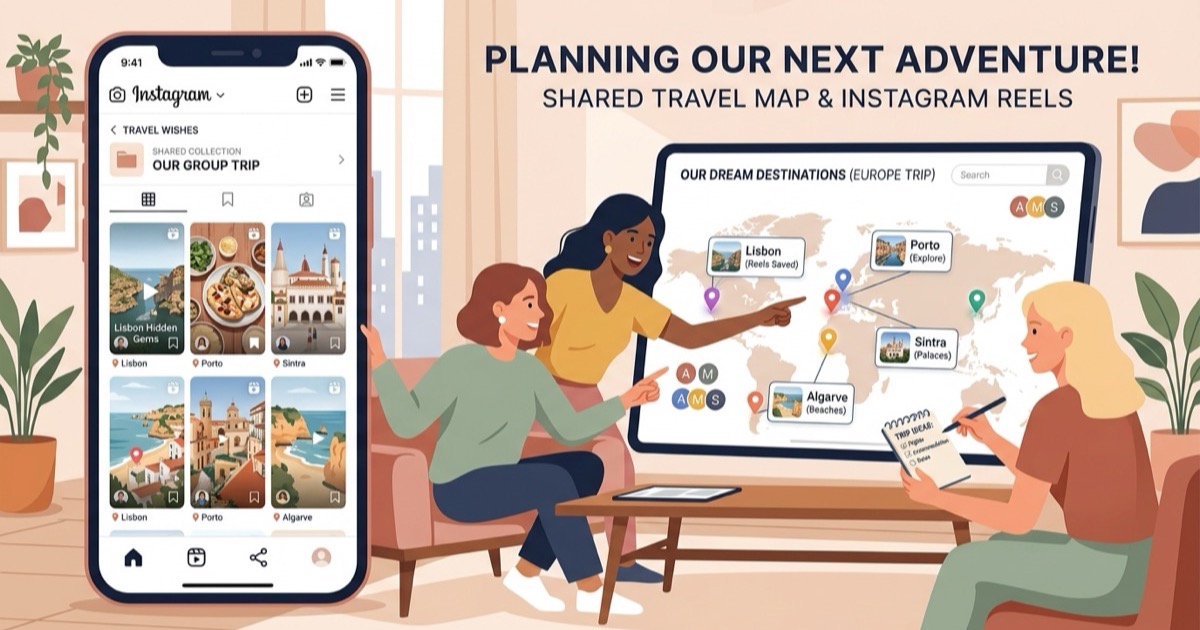
- Coordinate group travel with collaborative folders. If you are traveling with friends or a partner, use collaborative collections or shared chats so everyone's recommendations stay centralized. Read our guide on how to share Instagram saved places with friends to see how group saves work.
- Map your saves before booking accommodation. Seeing your bookmarked spots clustered on a map reveals which neighborhood has the highest density of places you love, preventing you from booking a hotel on the wrong side of town.
- Convert reels into an itinerary early. Don't wait until you land at the airport to decipher your saved folder. Transform your video collection into a structured reels-to-trip itinerary while you have stable Wi-Fi at home.
Your saved places never truly vanished—they simply outgrew Instagram's bookmarking interface. By converting scattered video clips into mapped pins and realistic daily schedules, you can turn months of passive scrolling into your next unforgettable journey.